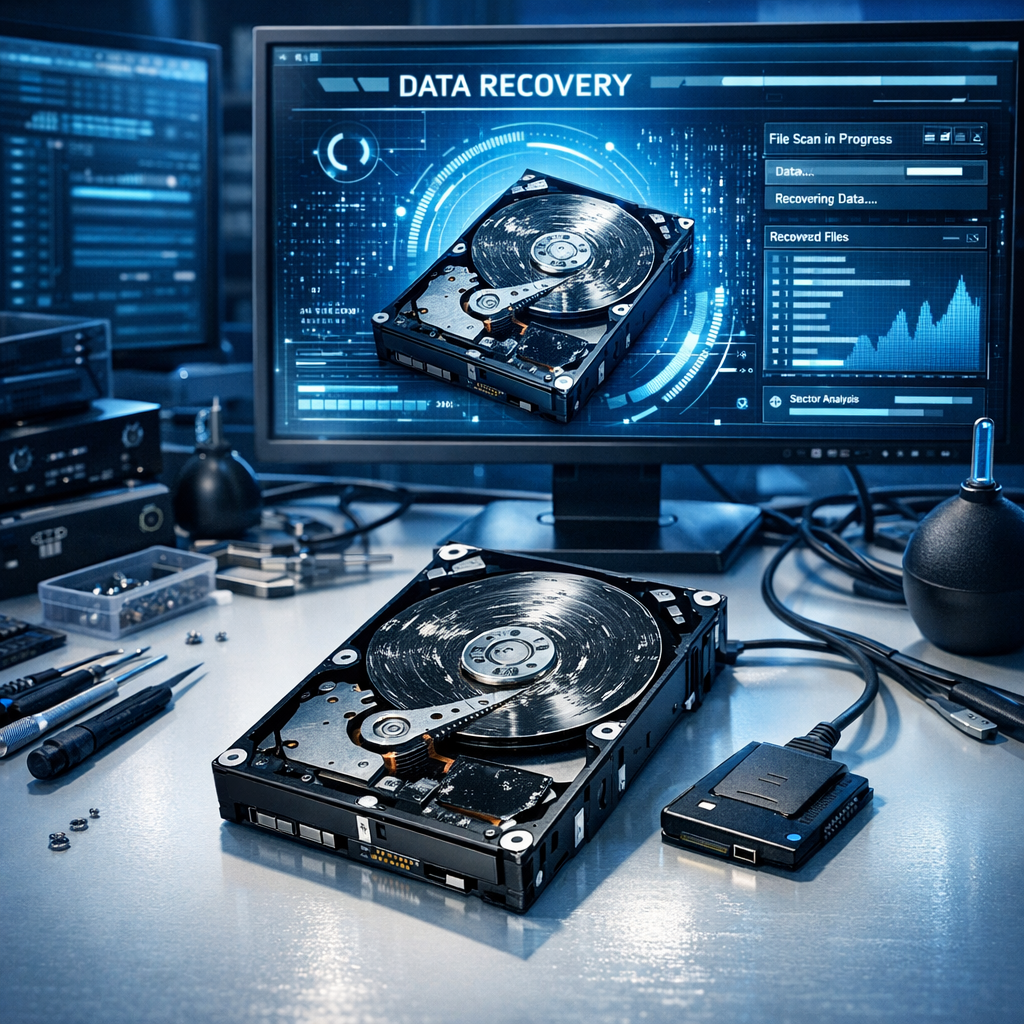
Data rescue for hard drives
When a hard drive fails, every click matters. This guide explains how to protect your files, avoid common mistakes and choose the safest recovery path.
Important: If the drive makes clicking, grinding or beeping noises, stop using it immediately. Continued operation can turn recoverable data loss into permanent damage.
Power down
Switch the device off and disconnect the hard drive safely. Do not repeatedly restart a failing disk.
Preserve evidence
Avoid formatting, reinstalling the operating system or running repair tools before making a recovery plan.
Clone first
If the drive is still readable, create a sector-by-sector image and work only on the clone, never on the original.
First steps after hard drive failure
Hard drive data rescue starts with damage control. Whether the issue is accidental deletion, a corrupted file system, a dropped external drive or a drive that no longer appears in the system, the safest approach is to reduce write activity and protect the original media. For broader recovery scenarios, see our fast and safe data recovery guide.
- Disconnect the drive if you suspect mechanical damage.
- Write down symptoms such as noises, error messages and when the failure started.
- Prepare a separate storage device with enough capacity for recovered files.
- Do not install recovery software on the affected drive.
Common causes of hard drive data loss
Logical damage
Deleted files, formatted partitions, damaged file tables and corrupted operating systems often leave data physically intact, but inaccessible.
Mechanical failure
Clicking sounds, slow reads, motor problems and head crashes require extra caution and usually professional cleanroom recovery. Learn more about Hard-Disk-Drive data recovery.
Electrical issues
Power surges, damaged USB bridges and faulty controller boards can prevent the drive from being detected at all.
DIY recovery or professional data rescue?
DIY tools can help when files were deleted accidentally or a partition table is damaged, provided the drive is healthy. Professional recovery is recommended when the disk makes unusual sounds, is physically damaged, is not detected reliably or contains business-critical data.
| Situation | Recommended action |
|---|---|
| Accidental deletion | Stop writing to the drive and recover to another disk. |
| Formatted partition | Create an image first, then scan the clone. |
| Clicking or grinding noise | Power off and contact a recovery lab. |
| Drive not detected | Check cables/enclosure only; avoid repeated power cycles. |
Recovery success depends on what you do next
The less the damaged drive is used, the higher the chance of retrieving documents, photos, databases and project files intact.
How to prevent future data loss
A successful data rescue should always be followed by a stronger backup strategy. Use the 3-2-1 rule: keep three copies of important data, store them on two different media types and keep one copy off-site or in the cloud. If you still rely on legacy media, our guide to data recovery from old backup media can help.
Automate backups
Schedule backups so protection does not depend on memory or manual routines.
Monitor drive health
Use SMART monitoring and replace drives that show reallocated sectors, read errors or unusual temperature patterns.
Conclusion
Hard drive data rescue is a race against further damage. Stop using the disk, identify the likely failure type and recover from a clone whenever possible. For mechanical or high-value cases, professional help is the safest route.
